
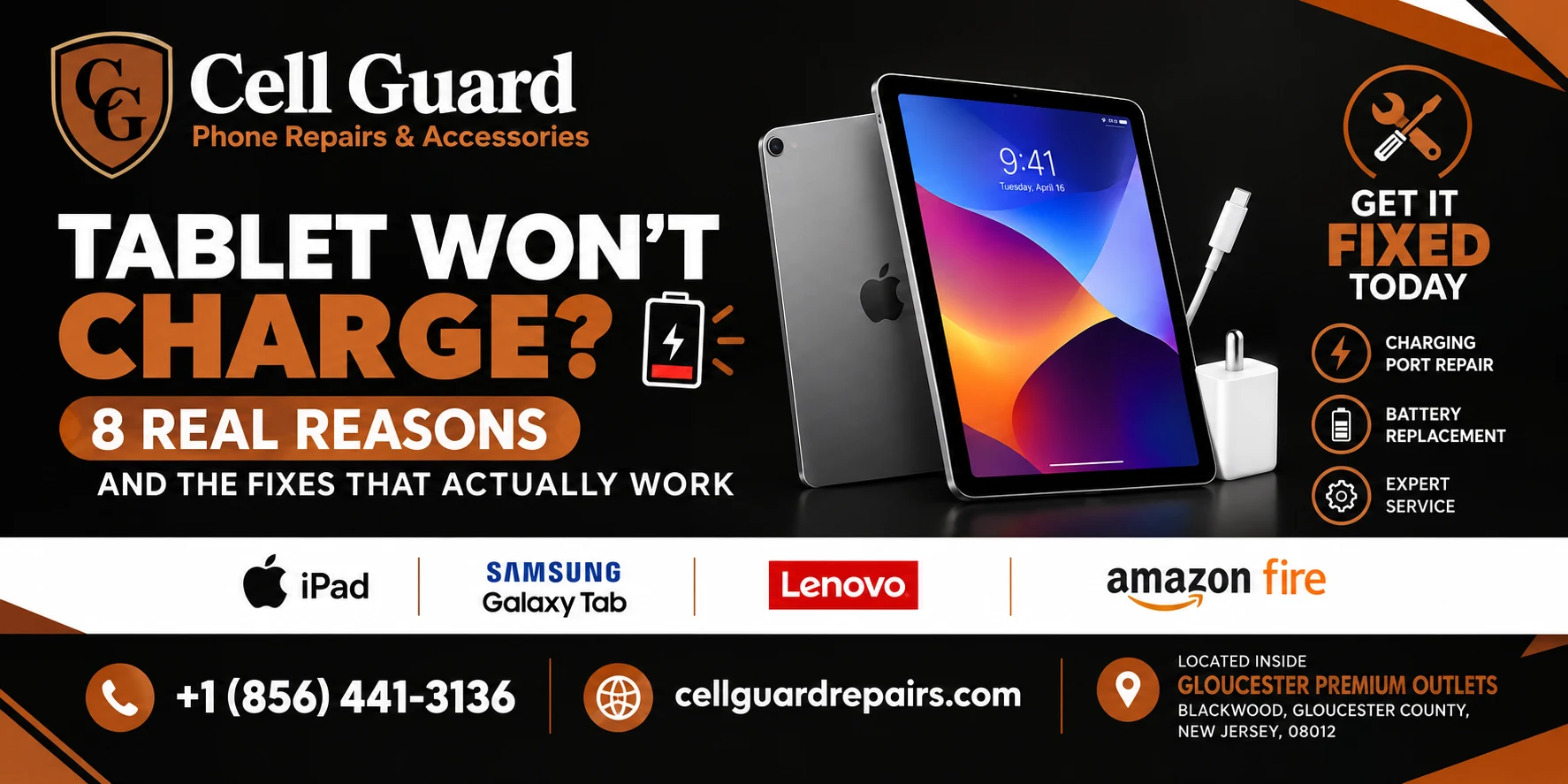
You plug it in, walk away, and come back to find the battery icon exactly where you left it. A tablet won’t charge for a handful of specific, identifiable reasons, and while it’s genuinely frustrating in the moment, it’s rarely as serious as it first feels. The tricky part is that several completely different problems can produce the exact same symptom — nothing happens when you plug it in — which makes it hard to know where to even start.
This guide breaks down the most common reasons a tablet won’t charge, and just as importantly, walks through how technicians actually diagnose and fix each one once it’s in front of them. Whether you’re dealing with an iPad, a Samsung Galaxy Tab, an Amazon Fire tablet, or a Microsoft Surface, the underlying causes and repair approach are largely similar, and understanding them puts you in a much better position to know what’s actually going on with yours.
Why the Same Symptom Can Mean So Many Different Things
A tablet that won’t charge is one of those problems where the visible symptom tells you almost nothing about the actual cause. A worn five-dollar cable and a genuinely failing internal component look identical from the outside — in both cases, you plug the tablet in and nothing happens. This is exactly why a proper diagnosis matters more than guessing, and it’s also why technicians follow a fairly consistent, methodical process rather than jumping straight to opening the device.
It also helps to know that this is an extremely common situation across every tablet brand, not a sign that something unusual happened to your specific device. Between the physical stress cables and ports endure daily, the wide range of third-party chargers on the market, and a battery that’s simply doing its job for years on end, a tablet won’t charge scenario is one of the more predictable problems any tablet owner eventually runs into, regardless of how carefully the device has been treated.
Working through the possibilities in the right order, from the simplest external causes to the more involved internal ones, is the fastest way to actually resolve a tablet won’t charge situation rather than replacing parts at random and hoping something works. Let’s walk through the specific causes, and how a technician approaches diagnosing and fixing each one.
1. A Worn or Damaged Charging Cable
This is, by a wide margin, the most common reason a tablet won’t charge, and it’s the first thing any competent technician rules out. Cables endure a lot of physical stress over time — bending near the connector, getting looped tightly, being yanked out at an angle — and the wires inside can fray or break well before any damage is visible from the outside.
How technicians diagnose it: A technician will typically test your tablet with several known-working cables and adapters right away, since this single test either confirms or eliminates the cable as the cause within a minute or two. If the tablet charges normally with a different cable, the diagnosis is immediate and the fix is simply a replacement cable, no further investigation needed.
2. An Incompatible or Underpowered Wall Adapter
Not every charging adapter delivers power the same way, and tablets, which generally have larger batteries than phones, are particularly sensitive to this. An adapter that doesn’t provide enough wattage can result in charging that’s extremely slow, inconsistent, or in some cases appears not to happen at all, even though the tablet is technically receiving some power.
How technicians diagnose it: Alongside testing cables, a technician will test with a properly rated adapter matched to your tablet’s specifications. If charging suddenly behaves normally, the original adapter simply wasn’t delivering adequate power, and the fix is as simple as using or purchasing a compatible one going forward.
3. A Dirty or Damaged Charging Port
Lint, dust, and pocket debris accumulate inside charging ports over months of regular use, and this buildup can prevent the cable from making a full, clean connection even when it looks properly plugged in. This is one of the more common reasons a tablet won’t charge that owners never think to check themselves, since the port often looks fine at a casual glance while still harboring enough debris to interfere with the connection.
How technicians diagnose it: A visual inspection with proper lighting and magnification reveals debris that’s easy to miss with the naked eye. If the port is dirty, a technician can safely clear it using specialized tools designed not to bend the delicate internal connector pins, something that’s much riskier to attempt at home with a pin or paperclip. If the port itself is physically damaged, bent, or loose, that’s a different repair involving replacing the port component directly, which requires opening the tablet.
4. A Software Glitch Preventing the Tablet From Recognizing Power
Occasionally, the issue isn’t hardware at all. A frozen or unresponsive system state can sometimes prevent a tablet from properly recognizing that it’s connected to power, even though the physical connection and cable are both completely fine. This is less common than the causes above, but it’s a genuinely quick thing to check before assuming a hardware problem.
How technicians diagnose it: A forced restart is usually the first step, since it costs nothing and resolves a meaningful share of software-related charging glitches on the spot. If the tablet has been completely unresponsive with no display or lights at all, a technician will often leave it connected to a known-working charger for an extended period before attempting to power it on, since a fully depleted battery sometimes needs time to build up enough charge to respond.
5. An Aging or Degraded Battery
Every lithium-ion battery degrades gradually with use, and a tablet that’s a few years old may reach a point where the battery simply can’t hold or accept a charge the way it used to. In more advanced cases, a degraded battery can appear to charge briefly before dropping right back down, or fail to charge at all despite everything else about the tablet functioning normally.
How technicians diagnose it: Battery diagnostics typically involve testing the battery’s voltage and capacity directly, rather than relying on what the tablet’s software reports, since a struggling battery can sometimes cause inaccurate readings on screen. If the battery tests as significantly degraded, a replacement is the appropriate fix, and this is one of the more common reasons a tablet won’t charge that owners misattribute to the cable or adapter before a proper diagnostic reveals the actual cause.
6. A Failing Charging IC on the Logic Board
The charging IC, sometimes called the charging chip, is the small component responsible for managing how power flows from the cable into the tablet’s battery. When this specific component fails, a tablet can display symptoms that look almost identical to a bad cable or dirty port — no charging indication at all, or extremely inconsistent charging — even after every external cause has already been ruled out.
How technicians diagnose it: This requires testing the tablet’s internal circuitry directly, typically with a multimeter, to check whether power is actually reaching the battery once it passes through the charging IC. This step usually only happens after simpler causes have already been eliminated, since it involves opening the device and testing components that aren’t visible or accessible from the outside. If the charging IC has failed, the repair involves replacing or reflowing that specific component on the logic board, which requires specialized tools and soldering experience.
7. Physical or Liquid Damage to Internal Charging Components
Drops, spills, or general wear over time can damage the internal components responsible for managing charging, even if the exterior of the tablet looks completely normal. A tablet that’s been exposed to any liquid, even a small splash, is particularly at risk, since moisture can cause corrosion on the charging circuitry that isn’t visible from the outside and can worsen gradually over days or weeks.
How technicians diagnose it: A visual inspection under magnification often reveals corrosion or liquid residue around the charging port and nearby components that wouldn’t be obvious otherwise. If corrosion is present, the repair typically involves carefully cleaning the affected area with specialized solutions before testing whether the charging circuitry functions normally afterward. Continuing to attempt charging a tablet with underlying liquid damage before this cleaning happens can make the corrosion worse, which is part of why prompt professional attention matters here more than with most other causes.
8. A Loose or Damaged Charging Port Connection
Beyond dirt and debris, the charging port itself can develop a loose internal connection from months or years of cables being plugged in and removed at slightly different angles each time. This gradually stresses the small solder joints connecting the port to the logic board, eventually resulting in a connection that’s unreliable or fails altogether, even though the port looks physically intact from the outside.
How technicians diagnose it: This is usually identified when a cable feels loose or wiggly once inserted, or when charging only works with the cable held at a very specific angle, a symptom pattern that persists even after ruling out the cable itself as the cause. The fix involves either resoldering the port connection or replacing the port component entirely, depending on the extent of the wear, which requires opening the tablet and working directly on the logic board.
How a Technician Approaches Diagnosing a Tablet That Won’t Charge
Pulling all of this together, a proper diagnostic follows a fairly consistent order: test with known-working cables and adapters, inspect and clean the charging port, attempt a forced restart, check battery health directly, and if none of that resolves it, move on to testing the charging IC and internal port connection with specialized tools. This structured approach is what separates an actual diagnosis from guesswork, and it’s exactly why a tablet won’t charge situation that seems mysterious to an owner is often resolved fairly quickly once it’s in front of someone following this kind of methodical process.
Signs It’s Time to Stop Troubleshooting and See a Professional
Working through cables, adapters, and the port yourself is a completely reasonable first step, but a few signs suggest it’s time to stop guessing and get an actual diagnostic. If you’ve tried multiple known-working cables and adapters with no change at all, if the tablet shows any physical signs of damage like a swollen back panel or a visibly bent port, or if charging worked fine until a specific drop or spill and stopped immediately afterward, continuing to experiment on your own is unlikely to help and could potentially make things worse.
Similarly, if your tablet is a few years old, has seen heavy daily use, and every external cause has already been ruled out, the odds shift meaningfully toward an internal battery or component issue rather than something you can resolve with a new cable. At that point, the most efficient path to actually resolving why a tablet won’t charge is a proper diagnostic from someone who can test the internal circuitry directly, rather than continuing to swap accessories and hope one of them makes a difference.
What Affects the Cost of Fixing a Charging Issue
Costs vary meaningfully depending on the actual cause. If the problem turns out to be a bad cable or adapter, the fix costs whatever a quality replacement runs, typically far less than the cost of any actual repair. A charging port cleaning tends to be one of the more affordable services available, especially compared to the alternative of living without a working tablet or replacing it outright.
Internal repairs — a battery replacement, a physically damaged port, or a failing charging IC — involve more parts, tools, and labor, and pricing depends on your specific tablet model and the extent of the issue. Rather than guessing, it’s worth getting an actual quote based on your specific situation. Most reputable repair shops, including Cell Guard Repairs, can run a proper diagnostic and give you a clear estimate, so you know exactly what you’re dealing with before committing to anything.
DIY Fixes vs. Professional Repair: Where to Draw the Line
Testing a different cable and adapter, and even carefully cleaning the exterior of the charging port with compressed air, are genuinely safe things to try yourself before assuming anything more serious. These simple checks resolve a large share of tablet won’t charge situations without any risk to the device at all.
Where it becomes a different situation is once you’re past those external checks and into battery diagnostics, charging IC testing, or internal port repairs. Opening a tablet involves specialized tools, careful handling of ribbon cables and adhesive-secured components, and in the case of a charging IC or port repair, actual soldering work on the logic board. This isn’t something to attempt without the right experience, since a small mistake can turn a repairable tablet into one that’s genuinely beyond fixing.
If you’re in the Blackwood, New Jersey area, the team at Cell Guard Repairs handles tablet charging repairs regularly, from straightforward port cleanings to battery replacements and board-level diagnostics. You can take a look at the full range of device repair services offered, or read a bit more about the people behind the shop before deciding where to bring your tablet in.
What Happens When You Bring In Your Tablet
Walking in with a tablet that just won’t charge doesn’t require you to already know which of the causes above is responsible — that’s exactly what a proper diagnostic is for. A good technician should be able to systematically test cables, adapters, the port, and the internal battery and circuitry to pinpoint exactly what’s going on before recommending any specific repair.
At Cell Guard Repairs, common issues like port cleaning and battery replacement can often be handled same-day, while more involved board-level repairs may take a bit longer depending on parts availability for your specific model. If you’d rather skip the guesswork and get things moving right away, you can start your repair request online and describe what your tablet is doing. Someone from the team will follow up with next steps, a cost estimate, and a realistic timeline for getting it back in working order.
Common Misconceptions About Tablet Charging Problems
A few assumptions tend to circulate about this issue that are worth clearing up.
“If it worked yesterday, the tablet itself is definitely fine.” Cables and adapters can fail suddenly rather than gradually, and a tablet that charged perfectly the day before can genuinely be affected by an accessory that failed overnight. It’s still worth ruling out the tablet itself with a proper diagnostic rather than assuming based on how recently it last worked.
“A tablet won’t charge if the battery is completely dead — it’s unfixable at that point.” A tablet that appears completely unresponsive is very often just a fully depleted battery that needs time connected to a known-working charger before it responds, rather than a battery or tablet that’s failed permanently.
“Any charging cable will work as long as the connector fits.” As covered earlier, cables and adapters vary significantly in build quality and power delivery specifications despite looking identical, and a mismatched or poorly made accessory is one of the most common, avoidable causes behind a tablet won’t charge situation.
“If the port looks clean, debris isn’t the problem.” Debris deep inside a charging port often isn’t visible without proper lighting and magnification, which is part of why a professional inspection can reveal buildup that looks completely absent to the naked eye.
Simple Habits That Help Prevent Charging Issues
A few ongoing habits can meaningfully reduce how often you run into charging problems in the first place. Handle charging cables gently, particularly near the connector ends, and avoid letting them get bent at sharp angles or crushed under other items in a bag. Use a quality cable and a properly rated adapter rather than the cheapest option available, since mismatched or poorly made accessories are one of the most common, entirely avoidable sources of charging trouble.
Periodically check the charging port for lint or debris, especially if your tablet travels in a bag frequently, and clean it gently with compressed air rather than waiting until charging becomes unreliable. Try to insert and remove the cable at a consistent, straight angle rather than at an angle, since repeated angled insertion is one of the more common ways internal port connections wear out prematurely over time.
It’s also worth keeping a couple of known-good cables on hand rather than relying on a single one, particularly if you regularly use public charging stations, shared workspaces, or hotel rooms where the available cable and adapter quality can vary widely. A small habit like this makes it much easier to quickly rule out the accessories the next time something seems off, rather than immediately assuming the worst about the tablet itself.
None of these habits guarantee you’ll never run into a tablet won’t charge situation again, but they meaningfully reduce the odds and often extend the life of the components involved.
Frequently Asked Questions
Is it normal for a tablet to charge more slowly as it gets older? Some gradual slowdown can be expected as a battery ages, but a sudden or dramatic change usually points to a specific cause — a worn cable, a mismatched adapter, or a port that needs cleaning — rather than something that’s simply “gotten old” overnight.
Can a cracked screen cause charging problems on a tablet? Not directly in most cases, but if the same impact that cracked the screen also affected internal components or connectors near the charging circuitry, it’s worth having both issues checked together rather than assuming they’re unrelated.
Will a factory reset fix a tablet that won’t charge? A factory reset can help with certain software-related glitches, but it won’t resolve a hardware issue like a worn cable, damaged port, or failing battery. It’s worth trying simpler troubleshooting steps first before resorting to a reset, which also erases your data if it isn’t backed up beforehand.
How do I know if it’s my tablet or my charger that’s actually the problem? Testing your tablet with a different, known-working cable and adapter, and testing your original charger with a different device, is the most reliable way to isolate which side of the equation is actually responsible for the issue.
Is it safe to keep trying to charge a tablet that was recently exposed to liquid? No — continuing to attempt charging a tablet after liquid exposure can worsen internal corrosion and turn a repairable issue into a more serious one. It’s better to power it off, avoid charging it, and have it inspected as soon as possible.
Does the brand of tablet affect how likely it is to have charging problems? Not dramatically — the same basic causes apply across iPad, Samsung, Amazon Fire, and Microsoft Surface devices, since they all rely on similar cable, port, and battery designs. What varies more is how easily replacement parts are sourced for a specific model, which can affect repair turnaround time more than the likelihood of the issue itself.
Can extreme temperatures cause a tablet won’t charge situation? Yes. Charging in a very cold or very hot environment can cause a tablet to charge more slowly, or in some cases, temporarily refuse to charge at all as a built-in safety measure. Letting the device return to a normal room temperature usually resolves this without any further action needed.
Visit Cell Guard Repairs in Person
Sometimes it’s easier to just bring the tablet in and let someone experienced run a proper diagnostic rather than working through every possible cause on your own. Cell Guard Repairs is located next to UGG’s, 100 Premium Outlets Dr Store #785, Gloucester Premium Outlets, Blackwood, NJ 08012, United States, making it an easy stop if you’re already running errands or grabbing a bite nearby.
Stopping by in person means you can describe exactly what your tablet is doing, have it tested right there with proper equipment, and in many cases, walk out the same day with it charging normally again. If you’d rather sort out the details first, the team is happy to help over the phone or by email:
✉️ Email Us: aroracases@gmail.com
Or, if you’d like to start things digitally, you can always submit a repair request online and skip straight to getting a plan in place.
Final Thoughts
A tablet that won’t charge is stressful in the moment, but in the vast majority of cases, the cause is one specific, identifiable issue rather than a device that’s simply beyond saving. Working through the possibilities in order — starting with the cable, the adapter, and the port before considering anything internal — gives you the clearest, fastest path to an actual answer, and understanding how technicians actually diagnose each cause helps demystify a process that can otherwise feel like guesswork.
If you’ve worked through the troubleshooting steps in this guide and your tablet still won’t charge, it’s worth getting it looked at by someone who can test it properly rather than continuing to guess. Reach out through the contact page, give the shop a call, or stop by Cell Guard Repairs at the Gloucester Premium Outlets and let someone who works on these devices every day take a proper look. You can also browse more device tips and guides on the blog while you’re at it. And if you’re curious what other customers have experienced, feel free to take a look at our reviews on Google.
 by
by